
Merge JPG Images
Merge JPG, PNG, and WEBP images into one file — side by side, stacked, or in a grid. Free online JPG merger with no uploads, no watermarks, and no sign-up required.
Drop images here
or click to browse · JPG, PNG, WEBP
↕ Drag thumbnails to reorder
Have you ever needed to put two or more pictures together into one image? Maybe you wanted to show a before-and-after photo. Or you needed to send a few screenshots as one file. Or you just wanted to make a photo collage for a project.
The Merge JPG tool makes all of that easy. You can combine as many images as you want — for free, in seconds, right in your web browser. No app to download. No account to make. No waiting.
What Is the Merge JPG Tool?
Merge JPG is a free online tool that lets you join two or more pictures into one. You can place the images side by side, stack them on top of each other, or arrange them in a grid like a photo wall.
It works with JPG, PNG, and WEBP image files. You can use it on any device — a phone, a tablet, or a computer. And because it runs right in your browser, your pictures never get sent to anyone. Everything stays on your device.
Why Would You Need to Merge JPG Images?
There are lots of good reasons to merge pictures into one. Here are some of the most common ones:
- You want to compare two photos side by side like a room before and after cleaning
- You need to make a photo grid for a school project or presentation
- You want to send several pictures as one file instead of many
- You run a small shop and want to show different views of a product in one image
- You are a photographer and want to show two versions of the same photo
- You just want to make a fun collage with your friends or family photos
No matter why you need it, this tool gets the job done quickly and without any fuss.
How to Use the Merge JPG Tool — Step by Step
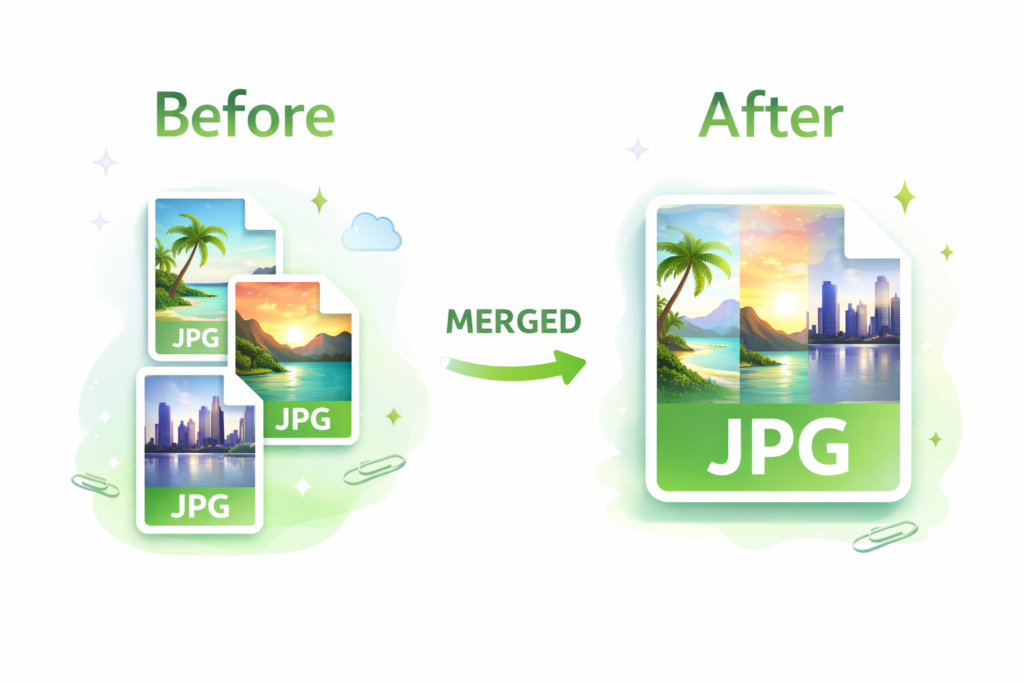
Using this tool is really easy. Here is all you need to do:
- Go to the Merge JPG tool page on your device.
- Click the upload box or drag your images onto the page. You can add as many as you want.
- Drag the thumbnails to put your images in the right order.
- Pick a layout horizontal, vertical, or grid.
- Set your options. Add a gap between images, choose a background color, and pick your output format.
- Click the Merge Images button. Your result will appear below in a few seconds.
- Click Download to save your new merged image to your device.
Most people finish in under a minute. It really is that fast.
Three Layout Options Explained
The Merge JPG tool gives you three ways to arrange your images. Here is what each one does:
Horizontal- Side by Side
This puts your images next to each other in a row, like a filmstrip. The first image goes on the left, and the rest go to the right. This is great for before-and-after photos or when you want to compare two things.
Vertical- Stacked
This stacks your images on top of each other. The first image goes on top. This works well for step-by-step photo guides or when your images are wide and you want them to line up neatly.
Grid- Rows and Columns
This places your images in a grid, like a photo wall. You can choose how many columns you want. If you have four images, a two-column grid gives you a nice square shape. This is perfect for photo collages.
Which Image Format Should You Pick?
When you download your merged image, you can save it as JPEG, PNG, or WEBP. Here is a simple guide to help you choose:
JPEG: Best for photos and pictures with lots of color. File size is small. Good for sharing on social media or by email.
PNG: Best for screenshots, images with text, or anything where you need sharp edges. Supports transparent backgrounds. File size is a bit bigger.
WEBP: Best for websites. Gives you the smallest file size while keeping great quality. Works in all modern browsers.
When in doubt, go with JPEG for photos and PNG for screenshots or text images.
Tips to Get the Best Results
Use images that are the same size. When your pictures have the same width or height, the merged result looks clean and even.
Add a small gap. Try setting the gap to 10 or 20 pixels. It gives your images some breathing room and makes the result look more polished.
Use a white background. A white background fills any empty space in grid layouts and looks good when printed.
Check the order first. Drag your thumbnails into the right order before you click Merge. It saves time.
Try the grid layout for four or more images. A two-column grid with four images gives you a nice balanced square shape.
Use WEBP if you are putting the image on a website. It loads faster and looks just as good as JPEG.
Your Images Stay Private
One of the best things about this tool is that your photos never leave your device. A lot of online tools send your files to a server somewhere on the internet to process them. This one does not.
Everything happens right inside your web browser. When you add an image, it goes into your browser’s memory. When you click Merge, your device does all the work. When you download the result, it saves straight to your phone or computer.
Nobody sees your photos. Nothing is stored. You are in full control.
Frequently Asked Questions
Is Merge JPG free to use?
Yes. It is 100% free. There is no cost, no premium plan, and no hidden fees. You do not even need to make an account.
Do I need to download an app?
No. The tool works right in your web browser. Just open the page and start using it. It works on Chrome, Safari, Firefox, and most other browsers.
How many images can I merge at once?
There is no set limit. You can merge as many images as you like. If you are working with very large files, it might take a moment longer on older devices.
Will there be a watermark on my image?
No. The image you download is clean and ready to use. There is no watermark, no logo, and no branding added to your file.
Can I use this on my phone?
Yes. The tool is fully responsive and works on iPhones and Android phones. Just open it in your mobile browser and it adjusts to your screen automatically.
What happens if I do not like the result?
Just click the Start Over button. It clears everything so you can upload new images and try again. You can also remove individual images before merging by clicking the X on each thumbnail.
Does it work with PNG and WEBP files too?
Yes. You can upload JPG, PNG, and WEBP images. You can mix different formats in the same merge. And you can save the result as any of these three formats.
Who Uses This Tool?
Merge JPG is used by all kinds of people every day. Here are some examples:
- Students who need to put screenshots or diagrams together for a report
- Teachers who want to combine several images onto one handout
- Small business owners who show multiple product photos in one image
- Photographers who make before-and-after shots or comparison grids
- Social media creators who make side-by-side posts
- Anyone who just needs to join two pictures together quickly
You do not need to know anything about photo editing to use it. If you can click a button, you can use this tool.
Try Merge JPG Free Right Now
Merging images does not have to be hard or expensive. Merge JPG makes it simple for everyone. Upload your pictures, pick a layout, and download your result. It takes less than a minute.
No sign-up. No downloads. No cost. Just a clean, fast tool that works every time.
Open the free Merge JPG tool today and see how easy it is to combine your images into one.
Related: merge jpg online free · combine images into one · join photos side by side · free image merger · merge png files · photo collage maker online · merge pictures without software · combine jpg and png · free online photo joiner